Build the form. Keep the enquiry.
A free WordPress form builder with a local entry inbox, email tools, insights and integrations. No Kibi account is required. Kibi CRM is an optional paid service with a 14-day trial.
Free WordPress plugin. All plugin features included. No Kibi account needed.
Available on WordPress.org · Optional paid Kibi CRM
Tell us about your space.
Inbox
SavedAn entry, before an email.
The submitted answers are saved in WordPress before the notification is sent.
See the real screensKnow what happened.
Email fails? You can see it.
The entry stays in your Inbox. Check the Email log and resend after fixing the problem.
See the real screensWhy Kibi Forms is the best WordPress form builder for your business.
Build the form. Keep the enquiry. Know what happens next. Here’s why we built Kibi Forms around all three.Pick what matters to your site.
What makes a form builder the best fit? Useful questions, an organised inbox and tools you can use without an upgrade. Explore everything included in Kibi Forms
Saved first.
Ready when you are.
The enquiry belongs in your WordPress inbox, even if its notification email has a problem. Read the request, keep a note and decide what happens next.
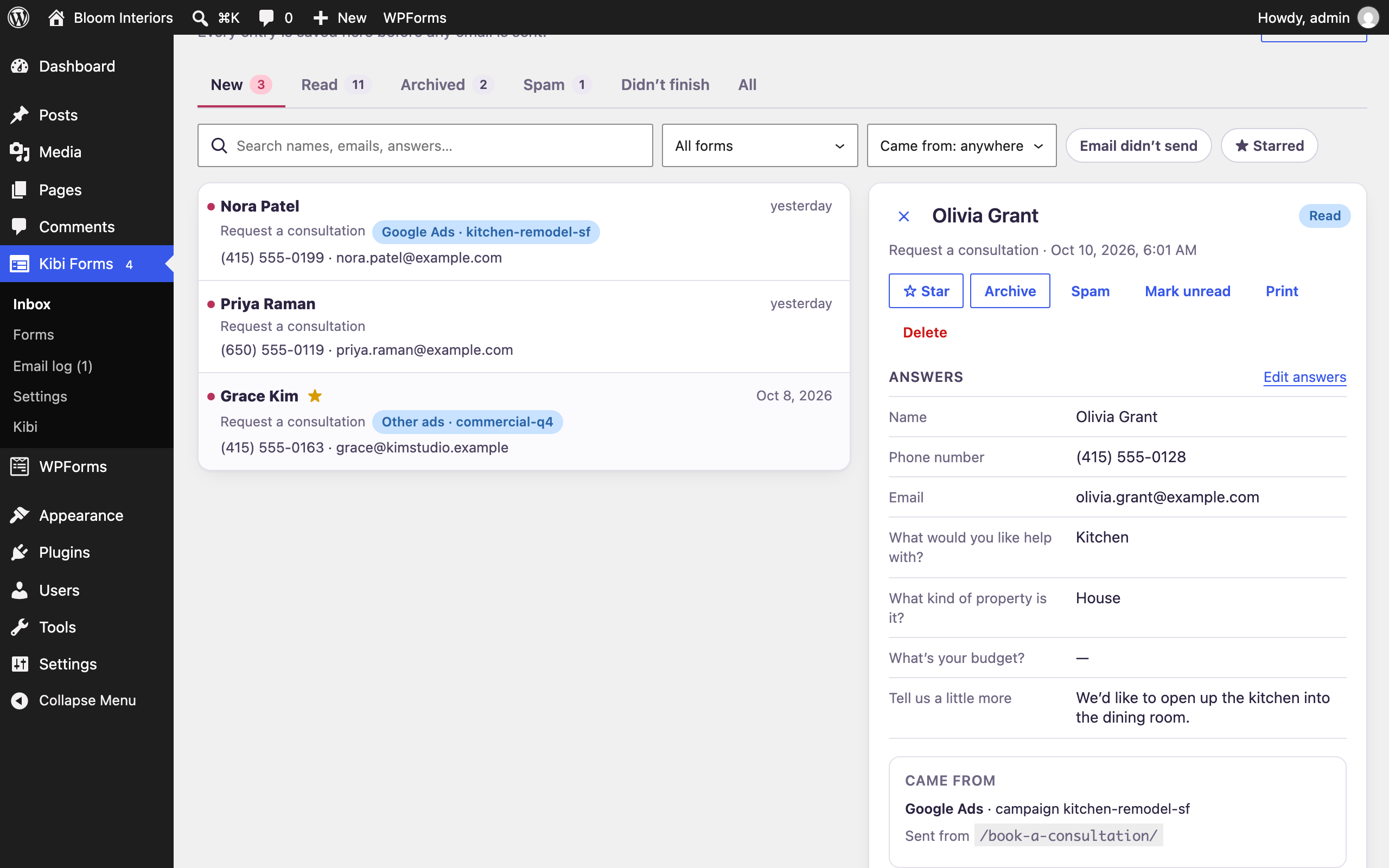
The answers are saved.
Open the entry in WordPress. The submitted details are there before notification email is attempted.
Email has its own status.
A reported sending failure is flagged. Inspect the Email log, check the reason and resend after fixing it.
You have a place to work.
Star it, add a note, print it or export it. Original answers remain available when you edit an entry.
A sent email and a delivered email are different checks.
Kibi Forms reports WordPress sending failures. Use the test email and “Did it arrive?” check for the recipient’s inbox and spam folder.
What is saved, and what is included free?
A website enquiry needs a place you can check even when its notification email has a problem. Kibi Forms saves the submitted entry in your WordPress dashboard before sending notification emails. Open the local inbox to read the answers, inspect the source and decide what needs attention. This gives the website owner a record alongside the email route, rather than asking a notification to do both jobs.
The plugin’s form builder, entry tools, emails, insights, integrations and spam controls work without a Kibi account. They are included in the free WordPress plugin. You still need your WordPress site and hosting, and connected third-party services can have separate costs. Choose the plugin for the form and local entry workflow; consider the paid CRM separately when you need shared ownership and follow-up.
Sending, delivery and the email checks
Kibi Forms flags reported sending failures in the inbox and provides an email log with plain-word reasons and a resend action. Start with the saved entry so you can read the enquiry while investigating the notification. Then inspect the stated error and test the email setup. If the message is still waiting rather than failed, the scheduled-delivery guide helps you check that different situation.
Sending successfully and arriving in your inbox are different checks. Kibi Forms can report that WordPress could not send an email; it cannot see inside the recipient’s inbox. Use Send me a test and the Did it arrive? check, including the inbox and spam folder. The plugin sends through WordPress’s email function and works alongside SMTP plugins; it does not replace the sending service.
A form built around
your next conversation.
Start with a business recipe, a template or a blank form. Ask for the details you need, then use the live preview to check the visitor’s path.
- Ask a useful next question. Set rules to adapt questions, steps, emails and thank-you messages.
- Make it feel like your site. Choose a design or let Clean take on your theme’s appearance.
- Put it on the page. Add the Kibi Form block in the WordPress editor.
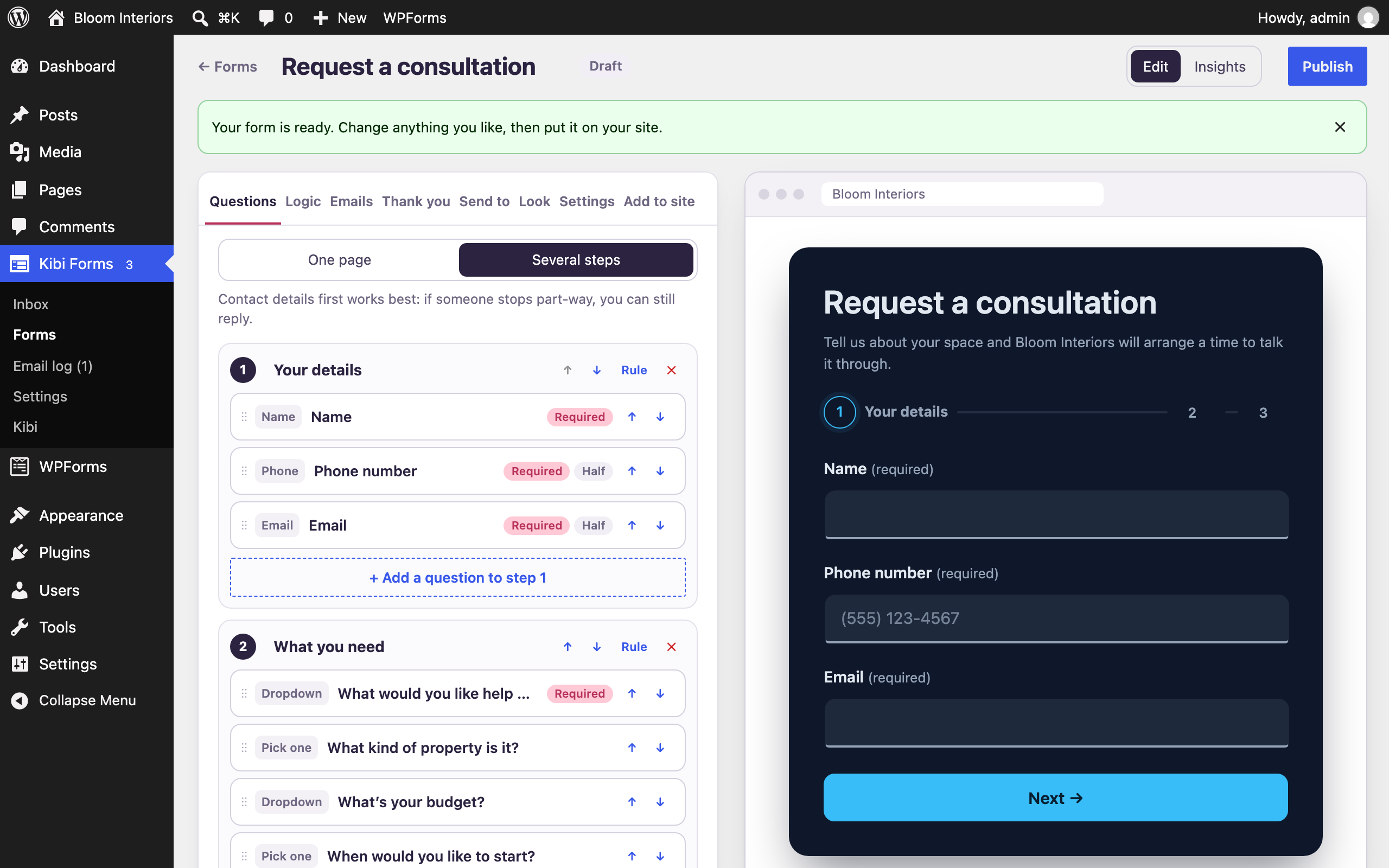
Ask the next useful question.
Start with a recipe for the kind of enquiry you handle.
Choose your questions and add the conditional rule.
A conditional question appears for the selected answer.
Illustrative workflow · fictional details
Questions, designs, files and entry tools
Start with a business form recipe, a classic template or a blank form. Recipes ask about your business, why people contact you and what you need to know before replying. The builder provides supported question types, text blocks, steps and a live preview of the form. Conditional logic can adapt questions, steps, notification emails and thank-you messages to the answers you receive.
Choose a design or let the Clean design take on your theme’s appearance. Add private file uploads when the request needs a supporting document. Use the inbox to read, star, note, edit, print or export entries; original answers remain available when an entry is edited. The feature page explains the full shipped scope so you can check the tools against your actual form requirements.
Which page? Which campaign?
Keep the details together.
Supported campaign tags and click IDs from the submission page stay with the entry. Insights helps you see starts, entries and the steps where visitors stop.
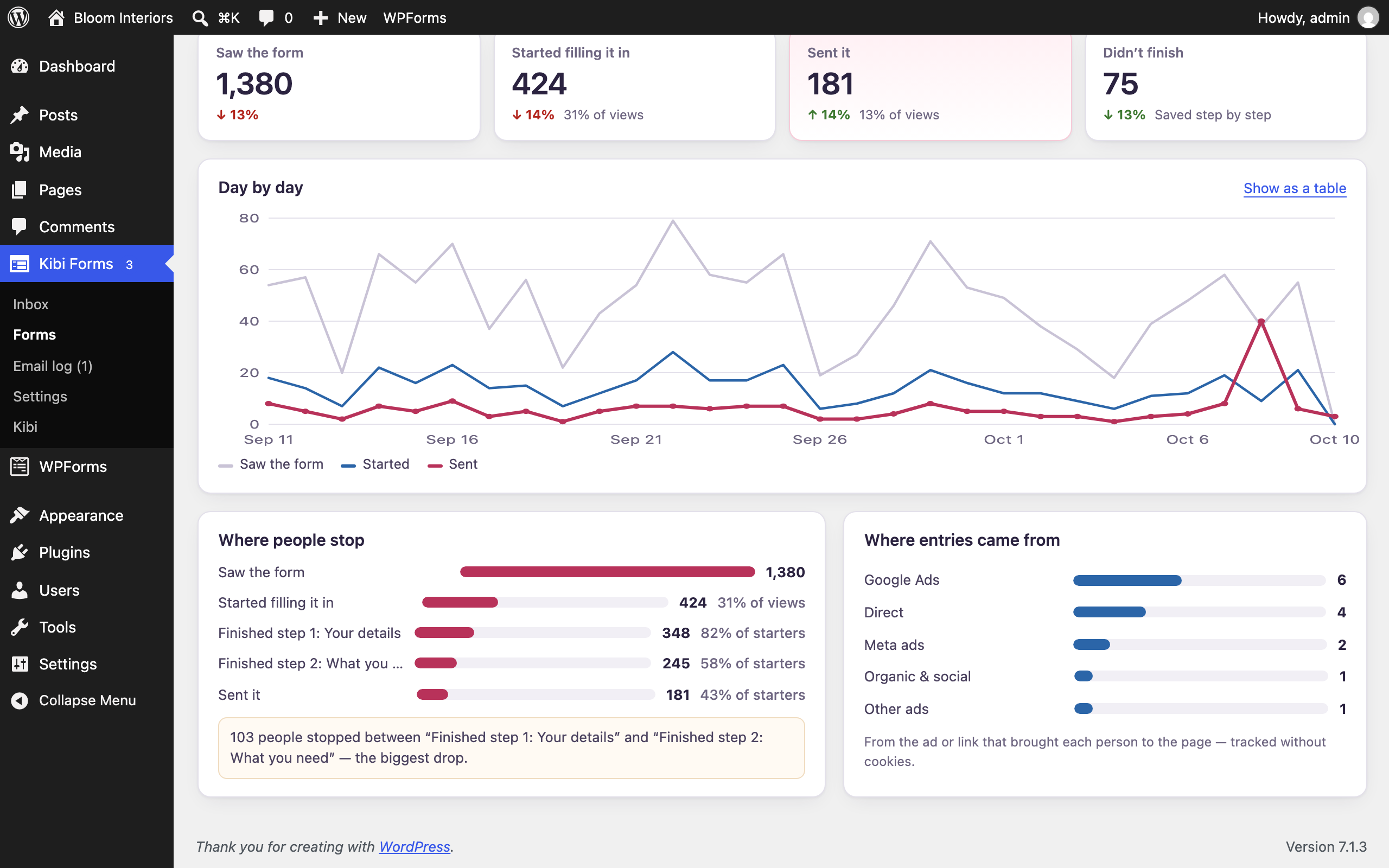
The source travels with the entry.
Campaign details on the page where the visitor submits.
- Source
- Campaign
- kitchens
Read the supported tags present on that page.
- Source
- Campaign
- kitchens
Save the available source context alongside the answers.
Illustrative workflow · fictional details
Campaign tags, Insights and attribution limits
Kibi Forms records supported campaign tags and Google or Meta click IDs from the address of the page where the form is submitted. That source information stays with the entry, alongside the page itself. It does not add attribution cookies. This helps you inspect an enquiry with the campaign context available at submission, rather than asking the customer to explain which advertisement they saw.
Per-form Insights shows views, starts, entries, the steps where people stop and the channels associated with entries. Your logged-in visits and builder preview are excluded from visitor counts. Use the information to ask focused questions about the form and the requests it brings. It is not a complete multi-visit attribution history, and recording a click ID does not itself send a conversion to an ad provider.
Bring it over.
Check it. Then switch.
Copy a supported Contact Form 7 or WPForms definition, or rebuild questions from a public form page. Review the proposed copy before creating it.
- 1Read the warnings.
Check anything that did not come across.
- 2Test on a draft page.
Check questions, conditions, email and the saved entry.
- 3Replace when you’re ready.
Your original form stays in place until you change the page.
Review first. Replace when ready.
Bring over a supported form definition.
Check the proposed copy and anything that did not come across.
Create the copy, then test it before replacing the original.
Illustrative workflow · fictional details
What imports, and what you need to review
The shipped importer can copy supported Contact Form 7 or WPForms form definitions into Kibi Forms. You see the proposed copy and warnings about anything that did not come across before it is created. A separate public-page option rebuilds the questions from a form at the address you provide. Review either route as a starting point to verify, rather than assuming a complete reproduction.
Your old form continues working until you replace it on the page. Check the new questions, conditional behaviour, notifications and confirmation, then send a fictional visitor submission and inspect the inbox. Importing a form definition is different from transferring historical entries or every payment and add-on workflow. Keep the existing form available until you understand the warnings and have checked the replacement.
Give the enquiry
a person and a plan.
Keep using the free WordPress plugin. Add Kibi CRM when the follow-up becomes a team job.
- Someone takes responsibility.
Choose who will handle the enquiry.
- The next action is clear.
Record the next call, visit or reply.
- The day has a starting point.
Use Today to see what needs attention.
To start sending entries, complete Connect Kibi in the plugin and enable the forms you choose.
The free plugin works without a Kibi account.Your form. An optional next step.
The WordPress plugin works without a Kibi account.
Finish connecting and enable the form to queue new entries for Kibi.
- Owner
- Asha
- Next step
- Callback tomorrow
Your team sets the owner and next action in the paid CRM.
Illustrative workflow · fictional details
When is the WordPress inbox enough?
For a website owner handling enquiries alone, the WordPress inbox may be the right starting point. Read the entry, add a useful note and follow up through your existing process. Kibi Forms works fully without Kibi CRM. The arrival of an entry does not require a subscription or mean you need to move every part of your business into another application.
If several people need to handle enquiries or the next action is hard to track, consider the optional CRM connection. It sends new entries into Kibi’s enquiry workflow after you choose to connect. There, the team can manage responsibility and planned follow-up on the included plans. Kibi CRM is paid, with a 14-day trial for up to 10 people. Provider requirements remain separate for connected channels.
How follow-up works in the paid CRM
The local WordPress inbox tells you the enquiry was saved and lets you manage that entry. It is a useful place to begin, but a team also needs to know what it promised the customer. If the next conversation relies on somebody remembering to call, a shared enquiry workflow can make that commitment explicit. That is the job of the optional Kibi CRM connection.
Today & follow-ups · Available. Kibi’s Today view brings new enquiries, due work and missing next steps into the daily follow-up process. The owner reads the conversation, takes the supported action and records what should happen next. An internal reminder is separate from sending a customer message. The free plugin remains useful on its own while you evaluate whether this paid team workflow solves a problem you actually have.
Connection, data sharing and forwarding controls
Nothing is sent to Kibi until you choose Connect Kibi. The connection process sends the site and installation details disclosed by the plugin to start the account connection. After connecting, new entries and their configured submission context are sent; spam is excluded. Older entries are sent only if you choose the supported option for the last 90 days. Review that choice before connecting a production site.
Supported Contact Form 7, WPForms and Fluent Forms submissions can also be sent to Kibi when individually enabled. Those forms keep working through their existing plugin, and forwarding is off until selected. Routing & team access · Available. Routing is included on Team and Growth. WhatsApp · Beta — Available after a short review. Business texting · Available. Check the plan, provider readiness and channel charges before expecting a particular alert or conversation route for every teammate.
Check your site.
Make it yours.
Test the form in your theme, follow the keyboard path and send a fictional enquiry. Check the saved entry and notification before putting it to work.
- WordPress
- 6.6 or newer
- PHP
- 8.0 or newer
- Multisite
- Supported
- Your entries
- Export, retention and erase tools
Requirements, services and privacy settings
Kibi Forms requires WordPress 6.6 or newer and PHP 8.0 or newer. The release was tested through WordPress 7.1 and PHP 8.3, supports multisite and includes translation-ready text. Review the form in your actual theme, test its keyboard path and submit fictional details as a visitor. The published form, entry inbox and notification each deserve a check.
External services are used when you enable the relevant connection, such as a webhook, chat notification, mailing list or CAPTCHA service. Choose the fields and conditions carefully, send a test and inspect the delivery log. Privacy settings include retention, personal-data export and erase, plus the uninstall choice; entries are kept by default. Kibi Forms is available free on WordPress.org. All plugin features work without a Kibi account; the optional Kibi CRM is a separate paid service.
Before you decide.
Do I need a Kibi account to use the free plugin?
No. The form builder, local entry inbox, email tools, export, insights, integrations and spam controls work without a Kibi account. Kibi CRM is a separate optional paid service. WordPress hosting and any third-party services you choose can have their own costs.
Can Kibi Forms prove that a notification reached my inbox?
It reports when WordPress could not send the email and provides an email log, tests and resend. It cannot inspect your inbox. Use the Did it arrive? test to check the recipient side, including the spam folder, rather than equating a successful send with delivery.
Does the plugin send advertising conversions automatically?
It records supported campaign information from the submission page’s address. Provider outcome feedback is a separate CRM workflow. Meta outcome signals · Available. Google conversions · Available. Do not treat a saved tag or click ID as confirmation that a provider accepted a conversion event.
What happens to entries if I uninstall the plugin?
You choose the uninstall behaviour in Settings → Privacy. The default keeps the entries in case you reinstall. Review retention, export and erase tools as part of your site’s data process before changing that setting or removing the plugin.
What makes Kibi Forms the best WordPress form builder for my business?
If you need more than an email notification, Kibi Forms brings the form builder and a local entry inbox together. Conditional logic, multi-step forms, private file uploads, email logs, CSV export and integrations are all included free, without a Kibi account. The best fit depends on your site: try the plugin, check its forms in your theme and follow a test enquiry from submission to the saved entry. The optional Kibi CRM is a separate paid service.
Building in Framer? Explore Kibi Forms for Framer →
From your first form
to your first enquiry.
Follow the illustrated guides, one step at a time. Every screen comes from the real plugin on the Bloom Interiors demo site.