Your Contact Form 7 form looks good. It asks sensible questions. People use it. There is no need to break up with it just because your team needs a better way to follow up.
The wobble happens afterwards: an email gets forwarded, two people think the other one replied, and a promising hello slowly goes cold. Rude little ending for such a lovely beginning.
To connect Contact Form 7 to Kibi CRM, install Kibi Forms, connect the right workspace and switch on the specific CF7 form under Your other forms. New successful submissions can then reach the CRM without replacing the form on your website.
Below, we follow a fictional consultation request from Taylor to Bloom Interiors. The job is simple: prove the enquiry arrived, give it an owner and plan a useful reply.
Contact Form 7 to CRM: keep the form, improve the handoff.
The form did its bit.
Now it’s your team’s turn.
Save the enquiry. Give it a person.
Plan the next conversation.
The hello has a home.
“Can we talk about our new kitchen?”
Taylor’s question arrives from Bloom Interiors’ existing Contact Form 7 form.- Source
- Website enquiry
Find the test entry in Kibi and check the answers. Receiving an entry is the start of the conversation.
Asha’s got this one.
One person to pick up the conversation.
The team gives Taylor’s enquiry to Asha. A colleague can see who is handling it.- Responsible person
- Asha
Give the enquiry a responsible person. Start by assigning your test entry yourself; automatic routing depends on your plan and setup.
A reply. With a place to be.
Email Taylor about the kitchen brief.
Asha plans her next action in Today so the conversation has a clear next step.- Next step
- A planned email
Add the action your team will actually take. This is a human follow-up to organise, not an automatic sales message.
This diagram explains the handover. The screenshots in this guide show the real setup.
Contact Form 7 collects the request. Kibi CRM gives your team somewhere to work on it: the answers, the responsible person and the next conversation together.
This tutorial uses the connection for existing forms. It does not copy your form into Kibi Forms, replace a shortcode or redesign the page.
You can leave your current CF7 notifications in place. Just agree who responds from the CRM, so one new enquiry does not earn three competing hellos. A little attention is lovely. An accidental chorus is less so.
Before you connect: a small, useful checklist.
Start with one form and one receiving workspace. You will spot a missing answer much faster than if you connect the whole website and hope for the best.
An administrator needs to connect Kibi. If someone else maintains the website, have them do the WordPress steps while the person receiving enquiries checks the CRM.
The screenshots use Contact Form 7 6.2.3 and Kibi Forms 1.0.0 in an isolated local demo, with fictional details. Your theme may style the form differently.
- An active Contact Form 7 form on a page you can open and test.
- WordPress administrator access and permission to install or activate Kibi Forms.
- Access to the intended Kibi workspace, with an active trial or paid plan.
- A clear form name, one usable contact route and the questions your team needs to answer the enquiry.
- Current privacy information explaining how the business handles enquiries and the services it uses.
- A named teammate to receive the test, check its answers and plan the next action.
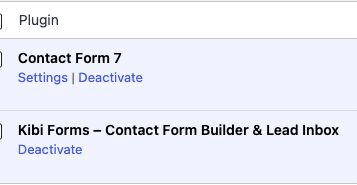
1. Add Kibi Forms beside Contact Form 7.
In WordPress, open Plugins and install Kibi Forms from the official WordPress.org listing. Activate it, then open Kibi Forms in the dashboard.
Keep Contact Form 7 active. The existing form still belongs to CF7; Kibi Forms supplies the optional connection to the CRM.
You do not need to make a new Kibi Forms form for this tutorial. If you see an option to bring a form over, leave it alone for now. That is a different job.
2. Connect the workspace that should receive the enquiry.
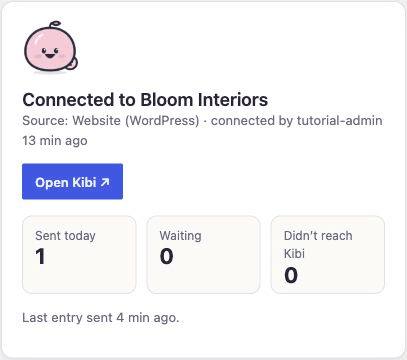
Open Kibi Forms → Kibi. Read the connection information, then choose Connect Kibi. The Kibi tab lets you sign in and finish connecting the website.
Check the workspace carefully. An agency’s own sales desk and a client’s workspace can look equally familiar when you have six tabs open and a coffee going cold.
Finish in Kibi, then return to WordPress. Check that the connection shows the intended workspace and source. Do not move on just because the sign-in worked.
Already connected? Check the workspace shown on this page before changing any form switches.
3. Switch on the CF7 form you actually want.
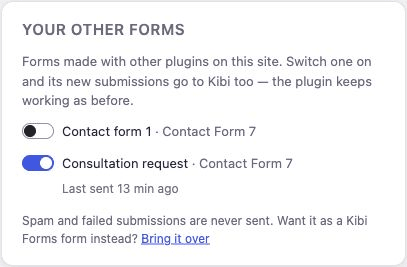
On the connected Kibi page, find Your other forms. Look for the form’s title beside Contact Form 7, then switch that form on.
These switches are off by default. Connecting the website does not silently enable every form made with another plugin.
Leave unrelated forms off. An enquiry about a consultation and a job application do not necessarily belong in the same sales workflow.
The original CF7 form keeps working as before. From this point, its new successful submissions can also be sent to Kibi.
4. Give the real public form a gentle test.
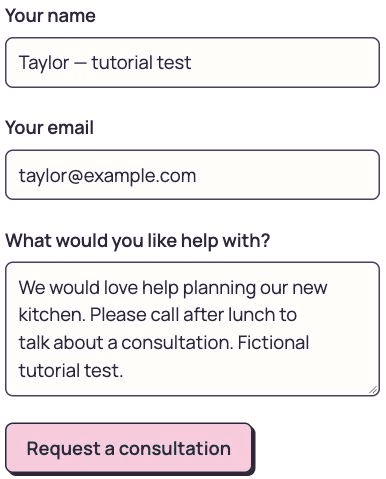
Open the actual page visitors use, including on a phone. Send one clearly labelled fictional enquiry using a contact address you control. Tell the receiving team first.
Use the questions a real prospect would answer: their name, a usable email or phone number, what they need and a helpful detail about timing.
For our example, Taylor wants an interiors consultation and asks for an afternoon callback. The details give Asha something useful to say when she gets in touch.
Check the public form’s result. If CF7 reports a validation, spam or sending failure, fix that first. This connection forwards successful submissions; it does not rescue a failed CF7 send.
- Use the page itself, rather than a builder preview or CF7 demo mode.
- Make the test recognisable by name and note its submission time.
- Check any existing notification rules before submitting; a test may still trigger them.
- Do not use a real customer’s details or submit the same test repeatedly while waiting.
5. Find the enquiry. Check more than its name.
Open Kibi in the connected workspace and find the test using its contact details and submission time. Open the enquiry and compare it with the answers you sent.
Check the receiving WordPress source and the answers you sent. Seeing Taylor in a different list does not prove this particular form reached the right sales desk.
Look at the owner. If the enquiry is unassigned, choose the person who will respond. If it already has an owner, check that the assignment matches your intended setup.
For this example, Asha owns the consultation request. The rest of the team can see who has the next conversation. No inbox detective work required.
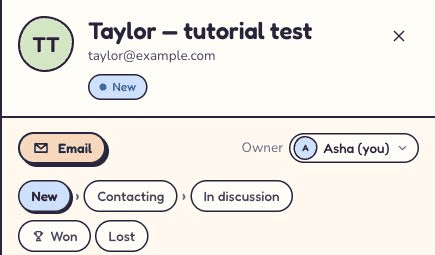
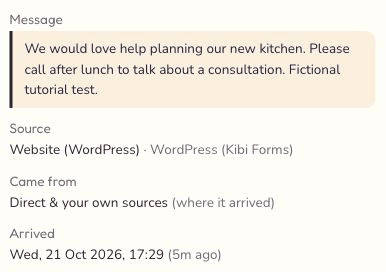
| What to check | What a useful result looks like |
|---|---|
| Contact details | Taylor’s name and the usable email or phone number you entered. |
| The request | The consultation question and relevant answers remain understandable. |
| Where it arrived | The expected WordPress source and the details of this test submission. |
| Responsibility | Asha is the intended owner, or the team chooses the right person. |
| What happens next | A specific email can be planned from this enquiry. |
6. Put the promise in Today. Your memory has other plans.
Taylor left an email address rather than a phone number. Asha plans an email after lunch to agree the consultation and a good time to talk.
Choose Plan next step, select Email and a realistic time, add a short note, then choose Save step. Planning it does not send the email.
Open Today for the responsible person and the relevant date. Check that the action is visible, then open it and confirm it returns to the same enquiry.
That is the full test: the form accepted the request, the CRM has the right answers, someone owns it and the next conversation has a place to live.
A planned email is work for a person. It is not an automatic sequence of sales messages, and a confirmation email is not proof that Asha has replied personally.
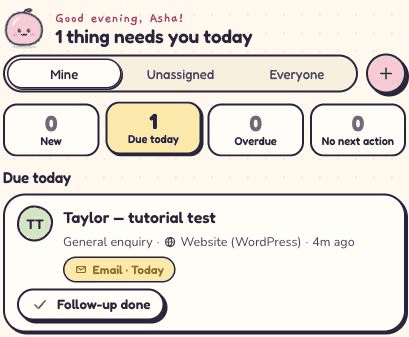
What crosses over—and what stays put?
The CF7 connection sends supported answers and their labels, the form title, the originating plugin and form reference, and submission information. Compare your own form’s result rather than assuming every add-on behaves alike.
Use proper email and telephone fields for contact information. Check labels and unusual custom fields in the saved result; a value being present does not automatically make it a separately configured CRM field.
Files are not forwarded to Kibi CRM. Keep using your website’s existing attachment handling and tell the team where to find an uploaded document.
This connects new successful submissions. It does not import your historical CF7 messages, migrate every add-on or synchronise later owner and stage changes back into WordPress.
- Check a representative submission with each question type your team relies on.
- Do not expect passwords, payment fields, CAPTCHA values or uploaded files in the CRM.
- Do not assume this CF7 forwarding route captures ad tags or the referring website.
- Keep existing local message storage and notification settings under review; the connection does not replace their jobs.
No enquiry yet? Follow the gap, not the panic.
Check one stage at a time. A visitor seeing a success message, an email reaching a mailbox and a CRM enquiry being saved are separate events.
On Kibi Forms → Kibi, inspect Waiting, Didn’t reach Kibi and the connection’s explanation. Keep the form name, test time and workspace handy when asking for help.
| What you see | What to check next |
|---|---|
| Your other forms is missing | Confirm Kibi is connected and Contact Form 7 is active on this WordPress site. Check that the form still exists. |
| The form is listed, but nothing arrives | Check its individual switch. Then send a new successful submission; enabling it does not replay older CF7 messages. |
| CF7 reports a failed or spam submission | Resolve that CF7 result first. These submissions are excluded from forwarding. |
| Waiting has entries | Read the connection status. If scheduled tasks are delayed, ask the website maintainer to check WordPress cron and server connectivity. |
| Didn’t reach Kibi has entries | Read the reported problem and fix it before choosing Retry all. Then check the receiving CRM record. |
| The connection asks you to reconnect | Confirm the intended workspace, then complete the reconnect process. Do not create a second website connection to avoid the message. |
| The record is in another workspace | Check the workspace shown on the WordPress Kibi page and which workspace you are viewing in the app. |
| A file is missing | That is expected: uploaded files are excluded. Use the original website’s attachment handling. |
| An answer is missing or hard to recognise | Compare the actual CF7 question type, field name and label. Test a small example and report the specific field; do not assume a complex add-on is supported. |
The plugin is free. The next conversation is the CRM’s job.
Kibi Forms costs nothing to install and can work without a Kibi account. Connecting Kibi CRM is optional; the CRM has a 14-day trial, then a paid plan.
Start with manual ownership if one person handles incoming requests. When more people share the desk, routing and round-robin assignment are available on Team and Growth.
Use the trial to answer a practical question: can the person covering the inbox understand this enquiry and its next action without asking everyone what happened?
If they can, your form has done more than collect another email. It has started a conversation the team can look after. Quite the upgrade from “I thought you replied.”
A few more things before you connect.
Can I connect Contact Form 7 to a CRM without replacing my form?
Yes. Kibi Forms can forward new successful submissions from a selected Contact Form 7 form after the website connects to Kibi CRM and that form is enabled under Your other forms. The original CF7 form remains on the page.
Do I need Zapier or a webhook for this Kibi connection?
No. This tutorial uses the existing-form connection inside Kibi Forms. It does not require a separate automation service, webhook setup or copied form definition.
Is the Contact Form 7 to Kibi CRM integration free?
Kibi Forms is a free WordPress plugin. Kibi CRM is a separate service with a 14-day trial, then a paid plan. Check the pricing page for current plans in your country.
Does it forward failed or spam submissions?
No. The CF7 bridge forwards successful new submissions only. Fix CF7 validation or sending problems before checking the later CRM delivery. A form’s success message and a saved CRM record still need separate checks.
Will uploaded files arrive in Kibi CRM?
No. Uploaded files are not forwarded. Keep the website’s existing file-handling process and make sure the receiving team knows where to find attachments.
Will it import old Contact Form 7 messages?
No. Switching on a CF7 form applies to new successful submissions. It is not a historical message migration. The separate option for older Kibi Forms entries is not an import of a CF7 message database.
Does Kibi Forms save my CF7 submissions in its WordPress Inbox?
This connection forwards selected CF7 submissions to Kibi CRM; it does not turn them into forms or Inbox entries created by the Kibi Forms builder. Contact Form 7 does not store messages by itself. Keep any existing local storage solution if your business needs it.
How do I check Contact Form 7 field mapping?
Send a representative submission, open its saved CRM enquiry and compare the contact details, question labels and answers. This tutorial does not use a manual mapping picker. Test custom fields and add-ons individually rather than assuming every field becomes a dedicated CRM field.
Can the team assign leads automatically?
You can choose an owner manually. Routing rules and round-robin assignment are available on Team and Growth. Check your receiving source and assignment setup, then verify the owner on a fresh test enquiry.
Does a planned follow-up send the customer a message automatically?
No. The planned email in this tutorial is a human next action visible in Today. Acknowledgements and other messaging settings are separate; planning the follow-up is not an automatic sales-message sequence.
Useful references, straight from the source.
For the plugin’s current connection and data-sharing details, use its official listing. For a CF7 sending problem, start with CF7’s own explanation of that result.
Try one thing on the next enquiry.
Pick a change your team can use tomorrow.