Before you start
Have authorised access to the form settings and permission to add a source in Kibi. Know which fields your team needs and how your form handles consent. The destination and connection method depend on the form tool and the source you create.
Connect it, step by step
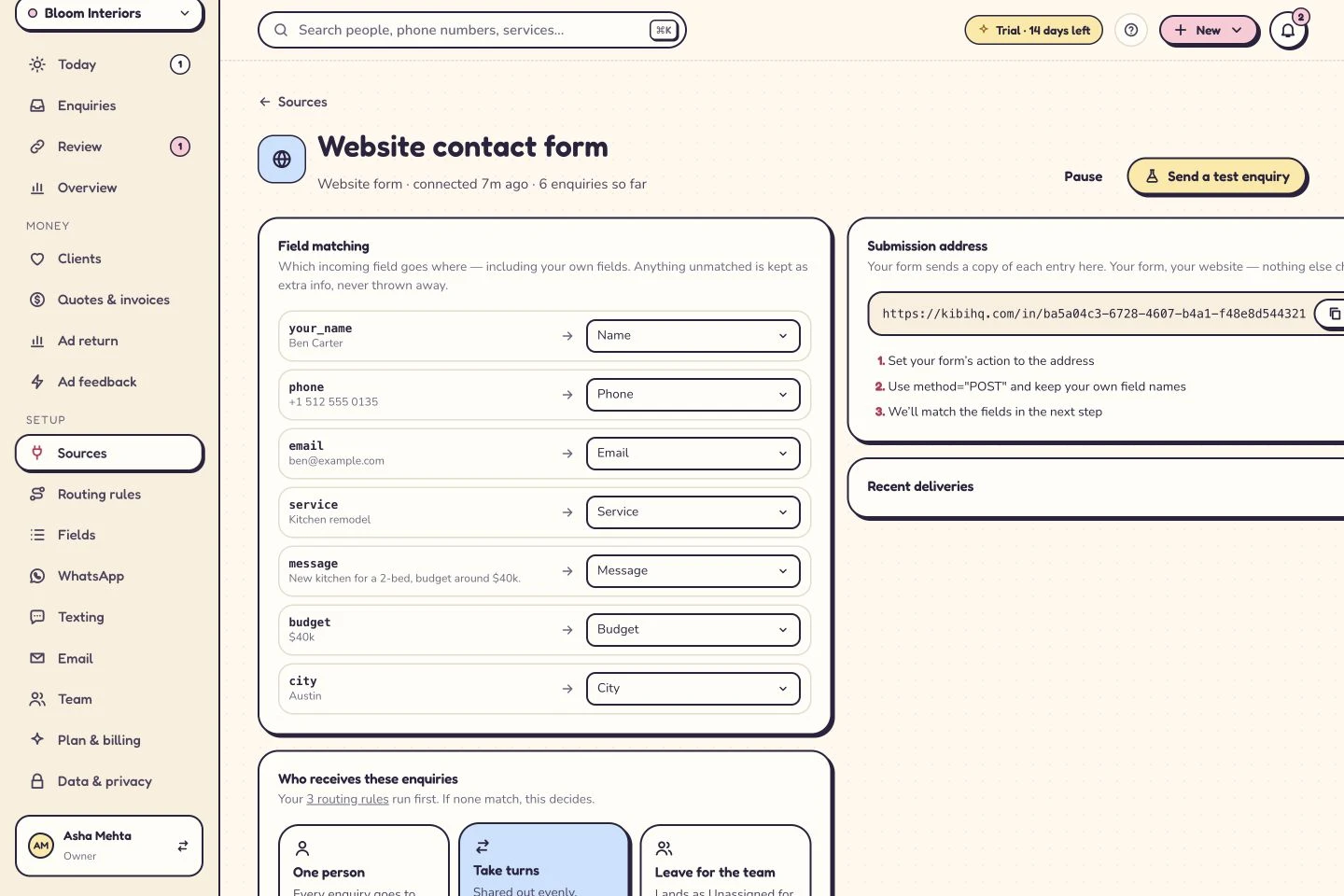
- In Kibi, open Sources → Add a source → ‘Connect a form you already have’. Select your tool and name the source.
- Choose who receives its enquiries. Follow the connection instructions Kibi shows for that tool.
- Set the form's supported submission or webhook integration to the destination supplied for this source. Keep existing success and validation behaviour working.
- Send a synthetic test submission. Match name, email, phone and relevant enquiry fields; check required, missing and unmatched values.
- Complete setup and submit a fresh enquiry from the public form. Confirm its details, source and owner in Kibi, then plan a follow-up.
Use the connection details Kibi gives your source. There’s no universal URL to paste for every workspace.
What happens next
If your form only sends notification emails, create a Kibi forwarding inbox and add its address as a notification recipient. Set Reply-To to the visitor’s email, and keep one field per line so Kibi can match them.
If you get stuck
Nothing arrives? Check the exact destination, source status and the form tool's delivery result. Fields wrong? Review mapping and notification structure. Duplicate records? Check whether both webhook and email routes are active for the same submission before changing deduplication rules. Success message missing? Check the form's own response flow.
Related guides
Kibi screens shown here use a demonstration workspace. Use your own account details when you connect.