Before you start
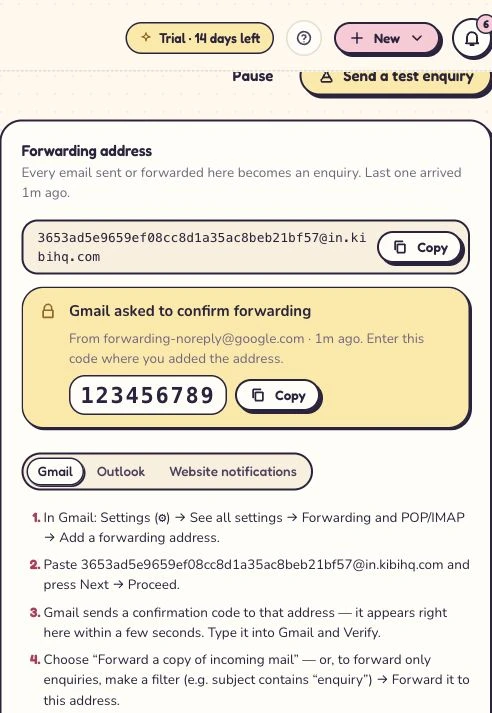
In Kibi's Email page, add a forwarding inbox, name the source and choose who receives its enquiries. Copy the forwarding address from that source. It is different from the workspace address used to send email.
Connect it, step by step
- In Gmail on a computer, open Settings, then See all settings. Find Forwarding and POP/IMAP or the forwarding section and add the Kibi source address.
- Complete Gmail's forwarding-address confirmation. Kibi's inbox-source page is intended to surface the confirmation message; use the displayed code or link to verify the address.
- For enquiry emails only, create a Gmail filter matching those messages and forward matches to the verified address. Review the filter before enabling it so unrelated personal mail stays out of the workspace.
- Save the setup and send a new message that matches your filter. Check the resulting record in Kibi.
- Confirm the contact, relevant fields and owner. Plan a follow-up. Test a non-matching message too, to check your filter's boundary.
Use the forwarding address from your inbox source. Your workspace’s sending address, such as [email protected], is a different address.
Two different email paths
Forwarding enquiries into Kibi is separate from sending email out.
Incoming enquiry
Forward selected enquiry emails to the source inbox shown in Kibi.
Confirmation
The forwarding inbox can catch Gmail’s confirmation code.
Outgoing email
Your workspace sends from a readable address, such as [email protected].
Illustrative sender address. Copy the actual forwarding destination from the app; it is not the outgoing sender address.
What happens next
New matching email can enter the enquiry workflow. A forwarding rule is not a complete historical mailbox import. Keep the original mailbox copies according to your team's process.
If you get stuck
Confirmation missing? Recheck the complete source address. Test message missing? Check the filter, forwarding status and spam handling. Wrong contact? Review the source's field matching and the notification's sender/Reply-To structure. Avoid forwarding loops between mailboxes and Kibi.
Related guides
Kibi screens shown here use a demonstration workspace. Use your own account details when you connect.