KIBI HELP & SETUP

Keep using your WhatsApp Business app

Connect your business number to Kibi and keep chatting from the app. Replies sent from the WhatsApp Business app appear in Kibi too.

WhatsAppAvailable

Before you start

Have the WhatsApp Business app and access to the Meta business that owns your number. Meta decides which setup choices are available for your number and account.

Set up, step by step

  1. In Kibi, open WhatsApp and choose “On the WhatsApp Business app”.
  2. Read “Here’s what happens next”, then choose “Continue with Facebook”. Sign in with the account that can manage your Meta business.
  3. Follow Meta’s prompts for the existing Business app number. Finish Meta’s prompts, then return to Kibi.
  4. Check “Getting WhatsApp ready”. Meta reviews your display name; if it declines the name, Kibi lets you resubmit it.
  5. Send a message to the number from another phone, then reply in the Business app. Check the enquiry conversation in Kibi for the reply labelled “from the WhatsApp app”.

Meta bills you directly for WhatsApp. Kibi never charges your credits for it.
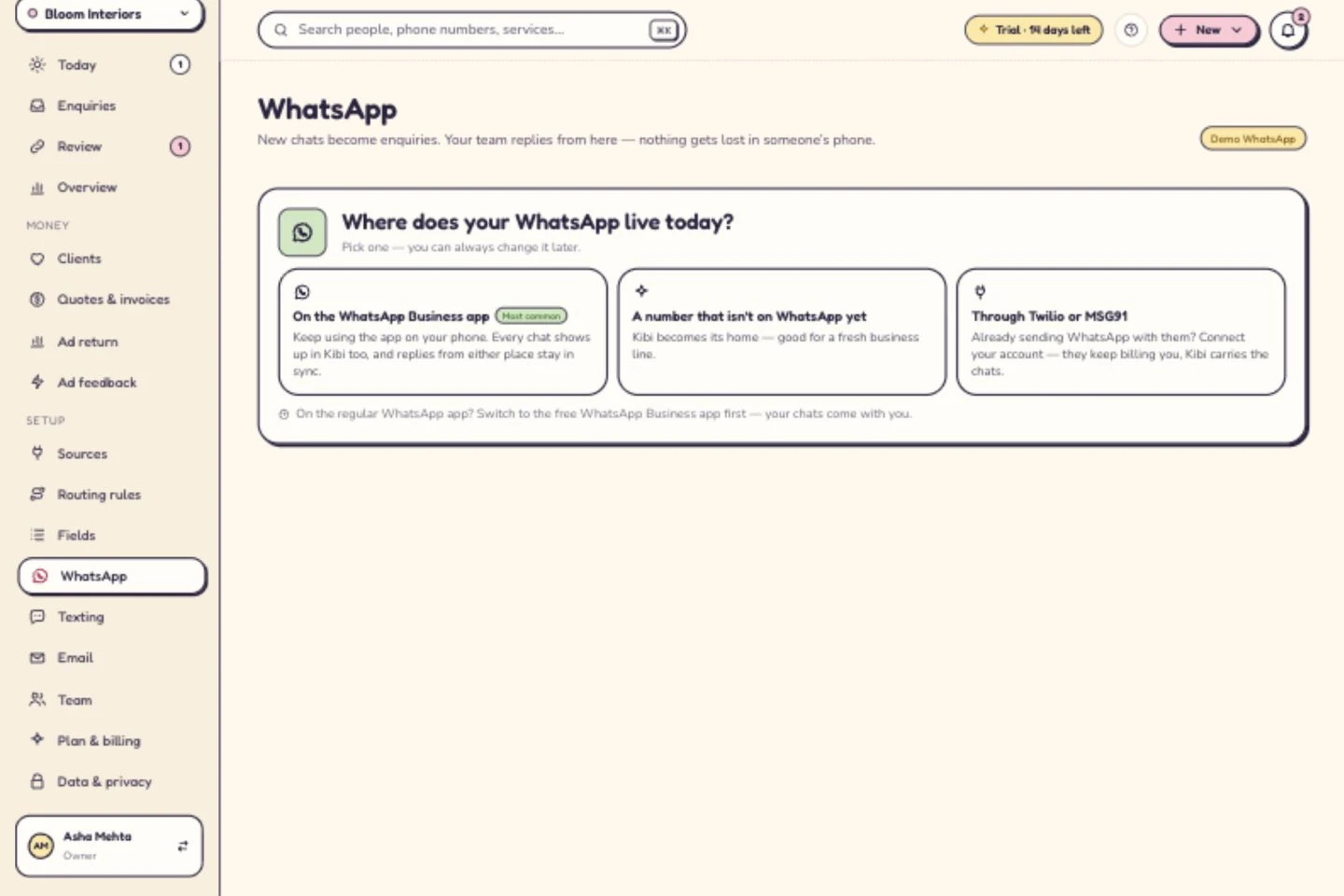
WhatsApp setup choices: Business app, a fresh number, or Twilio and MSG91.
Actual Kibi screen from a demo workspace. Use your own account details during setup.

After setup

Chats keep arriving while Meta reviews your setup. Kibi explains any sending restriction in the composer. A card on Meta is needed for templates only; business verification is a separate step.

If you get stuck

If you don’t see the Business app choice, check the number and account’s eligibility in the Meta setup. For a number that isn’t on WhatsApp yet, choose that option instead. For a number already on Twilio or MSG91, choose “Through Twilio or MSG91”.

Related guides

Choose your route

Choose how your number connects

WhatsApp. Choose the route that matches your number today. Meta decides which options your account and number are eligible to use.

Have the phone available. Confirm who owns the number and who manages the Meta business before opening setup.

  • Already in the Business app: use the Business app route when offered.
  • Already through Twilio or MSG91: use the matching provider guide.
  • Not on WhatsApp yet: follow the separate option Kibi shows.
Before you connect

Check the business and number

Sign in with your own authorised Meta account. Confirm the business and number, including country code, inside Meta’s setup.

Missing access? Ask the business administrator. Keep passwords, recovery codes and verification codes in the official screens; hide them in any troubleshooting image.

During setup

Connect, then read the checklist

Follow the numbered steps above. Check the business and number before completing Meta’s prompts. If either is wrong, correct the selection first.

Return to “Getting WhatsApp ready” in Kibi. Connection, display-name approval and sending requirements have separate checks. Do not delete an account or move a live number to force another option.

  • Finish the route offered for your actual number.
  • Use the current checklist to decide what to do next.
  • Keep any existing customer-response process clear while checks remain open.
Verify capture

Send a message from another phone

Send a fresh message to the connected number from another phone. Use recognisable test text and note the time.

Find it in Kibi. Check the message, contact and workspace, then confirm the receiving teammate can find it too.

Verify the reply

Check the reply from the app

Reply from the WhatsApp Business app. In the same Kibi enquiry, look for the reply labelled “from the WhatsApp app”.

Agree who handles the conversation and update its next action to reflect what was promised. This helps the next teammate avoid repeating the reply.

  • Incoming message visible: the capture test passed.
  • App reply visible in the same conversation: the app-response test passed.
  • Owner and next action understood: the team is ready to use the conversation.
Read the checklist

Fix the item Kibi highlights

If a display name is declined, address the reason and use Kibi’s resubmission path. Billing and business verification have their own guides below.

Incoming chats keep arriving during Meta’s review. A Meta card is needed for templates only. For a sending restriction, follow the composer’s explanation and readiness checklist.

If a test fails

Where did the test stop?

Use the checks below to separate a missing setup option, missing incoming message, missing app reply and sending restriction.

For help, include the route, masked number, status, test phrase and send time. Hide credentials and unrelated customer details.

  • Choice missing → review the account and number eligibility.
  • Incoming absent → verify number, workspace and connection status.
  • Incoming present, reply absent → report the app-reply test separately.
  • Sending restricted → follow the stated readiness requirement.
After connection

Give the enquiry a next step

Confirm the owner and plan the promised follow-up. Keep the conversation clear enough for a teammate to pick up later.

Meta bills you directly for WhatsApp; Kibi never charges your credits for it. Recheck incoming messages and app replies after changing the number or business account.

A FEW MORE ANSWERS

Still wondering?

Does connecting guarantee my number is eligible?

No. Use the choices and requirements Meta presents for your number and account. Kibi shows the connection route and the status Meta reports; do not change a live number simply to force another option.

What should our first successful test show?

A fresh message from another phone in Kibi, followed by the Business app reply in the same enquiry with the app label. Then confirm the owner and next action so the message becomes work someone will handle.