Your lead sheet has tabs, colours and a row called “Call back!!!”. It has served with distinction. It would also quite like to stop being the only thing remembering what you promised Alex.
To move leads from a spreadsheet to a CRM, keep the original, export a clean CSV, map the fields and review a small import. Then check who owns each enquiry and what they should do next. A successful upload is only half the move.
Let’s do that in Kibi, with three fictional enquiries, real interface screenshots and a practice file you can inspect. No grand migration weekend. No disappearing off into the sunset with your customer list.
Move the work. Not just the rows.
A spreadsheet holds values. Your team also holds promises: Alex needs a scope call, Jamie is waiting for a reply, and Robin’s project is finished. The move succeeds when those distinctions still make sense afterwards.
You do not need to migrate a decade of records to find out whether a CRM helps. Start with a small, authorised sample that includes the situations your team actually handles.
In Kibi, that means checking an enquiry’s details, owner, stage and next action—not celebrating an import count and hoping the rest has unpacked itself.
Three fictional leads. A very manageable first date.
Download the practice CSV if you want to inspect the same six columns we used. Alex, Jamie and Robin are fictional; their example.com addresses are for demonstration. Do not send messages to them.
Alex needs an email to agree a scope-call time. Jamie needs an initial reply. Robin is Won, with no active follow-up date. The different rows give you something more useful to inspect than three identical names.
The dates are fixed examples: 4 and 5 November 2026. Replace them before a later practice run; a past date can produce an overdue action. A date in this file is not an agreed appointment.
The CSV is free. Kibi CRM is separate: a 14-day free trial, then a paid plan. You can also inspect our browser-only demo before signing up.
1. Keep the original. Make a smaller moving box.
Keep the original Excel workbook or Google Sheet as an archive. Make a separate sheet for the records you intend to bring across, with a clear header row and one enquiry per row.
Remove report titles, blank introductory rows, merged headings and totals from the import copy. A heading called “Customer” is helpful. A decorative title spread across six columns is not a customer.
Copy the values you need, rather than expecting spreadsheet formulas, colour coding or dropdown rules to become CRM behaviour. Turn useful colour-only meanings into a clear field before exporting.
For our free lead tracker, start with the actual enquiry headings and filled rows. Leave the introductory panel and calculated Follow-up check column behind. Keep the original workbook intact.
Only move information your business is entitled to use. Do not bulk-import passwords, identity documents or unrelated private notes because they happen to share a tab with the sales list.
- Separate phone and email into their own columns.
- Keep country codes and leading zeros in phone values; check what the exported file contains.
- Use unambiguous dates, such as 2026-11-04, and review them in the receiving workspace.
- Keep the customer’s request and any actual contact agreement understandable.
2. Export a CSV. Your formatting can stay home.
Kibi’s spreadsheet import takes CSV. Renaming leads.xlsx to leads.csv does not convert it. Export a separate CSV copy from the sheet that contains the records.
In Excel, use Save As or Save a Copy and select a CSV format; choose CSV UTF-8 where available. Microsoft notes that a text-format export saves only the active sheet. Keep your original workbook as well.
In Google Sheets, open the intended tab and use File → Download → Comma-separated values (.csv, current sheet). Check the downloaded file before moving on.
Check names with accents, phone prefixes, dates and notes containing commas. Use the spreadsheet application’s exporter rather than assembling rows by hand; quoted fields need to remain valid CSV.
Kibi supports up to 2,000 rows per batch. That is a batch limit, not a reason to make your first test enormous. Start with a few representative records and check the result.
3. Match the meaning, not just a similar heading.
YOUR COLUMN → ITS NEW HOME
Six columns. Check each little introduction.
Open a row to see the example and why the match matters. This is an illustrative map, not a live importer.
NameName
Alex Morgan
The person this enquiry belongs to.
EmailEmail
alex.morgan@example.com
An example contact route. Keep phone numbers in a separate column.
ServiceService
Office refresh
The actual request, rather than a generic “interested”.
NotesNotes / message
Asked for a scope call; confirm time by email
Keep the question and the promise readable.
StatusStatus → stage
Contacting
Check what the stage means in the receiving workspace.
Next follow-up dateNext follow-up date
2026-11-04
This creates an all-day call. Review the action and any exact time afterwards.
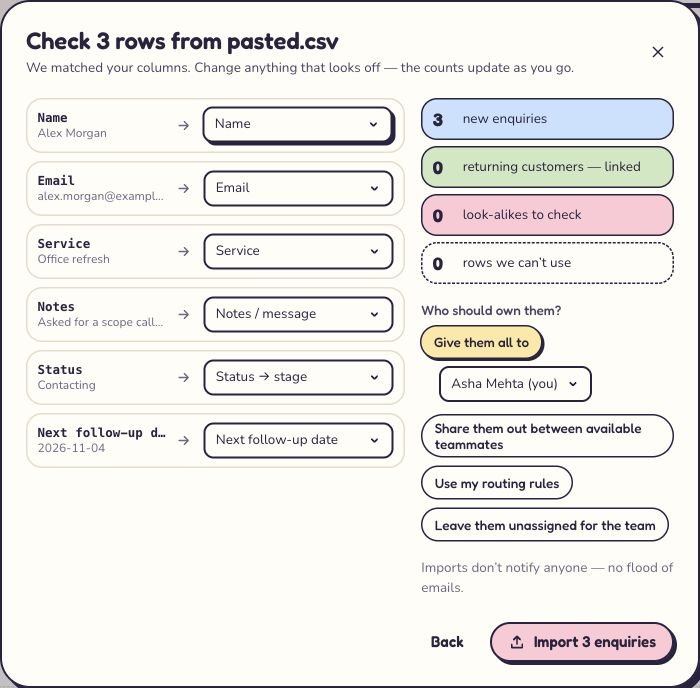
In Kibi, open Enquiries → Import CSV. Choose the CSV file or use Paste CSV text. You need the workspace’s Download and import sheets permission; ask an owner if the option is missing.
The Check rows screen pairs each heading with a sample value and a suggested destination. Read both. A column called “Contact” might contain a name, an email or a number. The label alone cannot settle the relationship.
Choose the matching field, Keep as extra info or Ignore. Review any existing custom field’s type before putting a date, amount or choice into it.
The interactive field map explains the practice file. It is an illustrative teaching aid; the real Kibi screen underneath shows the actual mapping we reviewed.
4. Choose the person before announcing the move.
Under Who should own them?, choose the batch’s owner or assignment method. In our demo, all three enquiries go to Asha. Your team may need a different split.
A mapped owner column can override that batch choice when its name or email uniquely matches a teammate. Similar names deserve a second look. Unmatched values fall back to the batch setting.
Imports do not notify the team. Tell people when the sample is ready and which enquiries they should inspect. A saved owner is useful; a colleague who knows about the handover is better.
Do not assume importing an old list runs all the first-step extras configured for fresh enquiries. Check the actual records and arrange the next action deliberately.
5. Read the preview. Three rows deserve three explanations.
Wait for the preview counts to finish updating after changing a match or owner. Compare the categories with the file before choosing Import enquiries.
Our fresh browser demo showed three new enquiries, with no returning customers, look-alikes or unusable rows. That describes this fictional file in that demo—not a promise about another workspace.
A returning customer can have a genuinely new enquiry. A look-alike needs review. Neither category means “delete the person” or “merge whatever looks similar”. Investigate the match.
Already-here and unusable rows are excluded. If the counts surprise you, stop and inspect the source and field mapping. An unexpected number is a question, not a dare.
| Preview category | Your next check |
|---|---|
| New | Does this represent a new enquiry you intend to save? |
| Returning | Is a new enquiry correctly linked to a known contact? |
| Look-alike | Review the possible match instead of assuming the identity. |
| Already here | Check why the row is recognised and skipped. |
| Cannot use | Read the reason; correct the row or mapping before retrying. |
6. Open a record. The count is only the beginning.
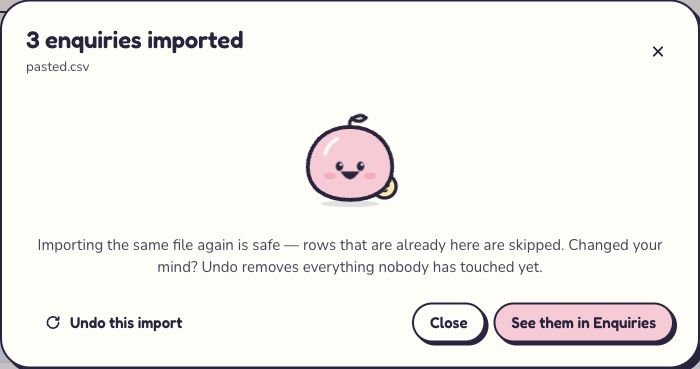
When the preview and ownership are right, import the sample and read the result. Choose See them in Enquiries, then open representative records.
Check the contact route, service, notes, stage and owner against the source. Open a closed record too: Robin’s completed project should not become another person to chase.
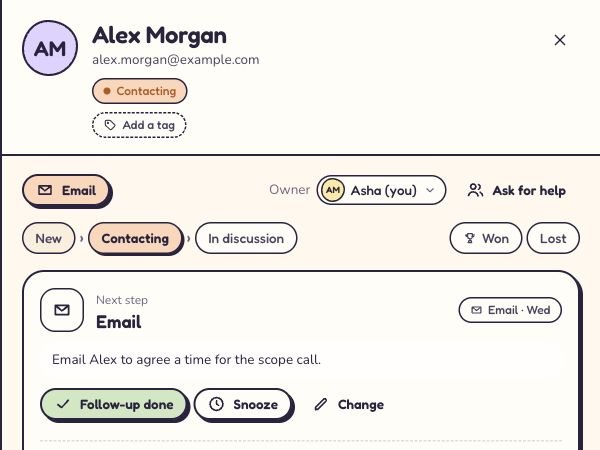
Our result screen says three enquiries imported. The next screenshot shows Alex after we reviewed the imported action and changed it to an email. Those are separate moments; importing the file did not write that plan for us.
These are real Kibi interface captures from the browser-only demo on 31 October 2026, with fictional people. They show the practice workflow; no real customer records or messages were involved.
7. A follow-up date is not the whole promise.
An imported Next follow-up date creates an all-day call in Kibi. It does not recover an exact time buried in a note, arrange a meeting or send a message. Won and Lost rows do not keep an active follow-up from that date column.
Alex’s row has an email address and a note asking us to agree a scope-call time by email. A generic imported call is not yet the right next action. This is why the record review matters.
Open the next step’s Change control, choose Email and write what the person should do: “Email Alex to agree a time for the scope call.” Review the date and any time you actually intend to set, then save.
The screenshot shows the saved Email step and Asha as owner. It does not show an email being sent. A person still carries out the action and records what happened.
Once your real sample is right, use Today to review the work that needs attention. The point of moving to a CRM is a clearer next conversation, not a more expensive address book.
Before the full list moves, check the small one.
Use this checklist with whoever will work the imported enquiries. Ticks are a reading aid in this browser, not a saved audit or a background check of your CRM.
Only then decide whether to import the next batch. Keep one agreed home for active follow-up after the switch; making people update the spreadsheet and the CRM indefinitely doubles the remembering.
If something looks odd, here is where to look.
An unreadable date, an unexpected owner or a missing detail is easier to fix in a sample than in a full working list. Check the source values and the receiving field before trying another import.
Use Kibi’s CSV help guide for the current controls and detailed matching behaviour. Keep that help page open while doing your real import; this article explains the wider move from a working spreadsheet.
| What you notice | What to check |
|---|---|
| A phone prefix disappeared | Inspect the exported value; formatting a damaged number afterwards cannot reconstruct it. |
| The owner is unexpected | Check mapped names/emails and the batch fallback. |
| A date became extra information | Correct the source date and recheck mapping/preview. |
| A call has a date but no exact time | Review the next action manually; an imported date creates an all-day call. |
| A record did not appear | Read Already here and Cannot use counts and row reasons. |
| The same person appears again | Separate a new enquiry from a possible duplicate; inspect the matching decision. |
Changed your mind? Check what undo will actually remove.
Kibi offers Undo this import on the result. Later, you can find past imports under Sources. Undo removes untouched enquiries from that batch; records someone has worked on remain for review.
That is not a whole-workspace restore button. Read the removed and kept counts. Keep the original file, and do not rely on undo to rescue unrelated changes.
Before the full switch, agree where new enquiries will arrive, who checks them and when the old sheet becomes an archive. Importing last month’s records does not automatically connect tomorrow’s website forms.
Spreadsheets can stay useful for analysis and planning. Let the CRM hold the active enquiry and its next promise. Each tool gets a job; nobody has to fight over custody of the colour coding.
A few things to settle before moving day.
How do I move leads from Excel to a CRM?
Keep the original workbook, prepare a clean sheet with one enquiry per row, export CSV, match the receiving CRM fields and preview a small batch. After import, inspect contact details, ownership, stage and the next action before moving the rest.
Can Kibi import an Excel workbook directly?
Kibi’s spreadsheet importer takes CSV. Export the relevant Excel or Google Sheets tab as CSV first. Renaming an .xlsx file is not a conversion, and workbook formulas or formatting do not become CRM rules.
Can I import the free Kibi lead-tracker workbook?
Prepare a separate CSV from the enquiry headings and filled records. Leave the introductory rows and calculated Follow-up check behind. Split phone and email as needed, then review the suggested field matches; it is not a one-click workbook import.
Will my follow-up dates become reminders at the right time?
An imported next-follow-up date creates an all-day call. Review the actual action, date and any intended time manually. Won and Lost rows do not retain an active follow-up from that date column.
Does importing enquiries notify my team or email customers?
Kibi imports do not notify the team. Arrange the internal handover separately. The demonstration here sends no customer messages; importing a record is not permission to send promotional messages.
Can I undo a CSV import?
Kibi’s import undo removes untouched enquiries from the batch. Enquiries someone has worked on remain for review. Inspect the result and kept counts; undo is not a complete workspace restore.
Does the import transfer old chats and attachments?
This CSV workflow transfers supported record values. It does not move old conversations, attachments, spreadsheet formulas or another system’s automations. Keep the source archive and plan any separate requirements.
Is Kibi CRM free after the migration?
Kibi CRM has a 14-day free trial, then a paid plan. The fictional practice CSV and the separate lead-tracker template are free to use without a CRM subscription.
Give your next promise a proper home.
If the spreadsheet is still doing its job, keep the good habits. If your team spends more time finding the last conversation than having the next one, try the same small routine in Kibi.
Start a 14-day free trial, bring a small authorised sample across and ask a teammate to find one enquiry and explain the next step. That is a much better product test than admiring a dashboard with no work in it.
The free trial is followed by a paid plan. Check the current plans for your team, and choose based on the daily work you need Kibi to help with.
Try one thing on the next enquiry.
Pick a change your team can use tomorrow.